 How-to
Smartphone Garage Door App Safety: Setup & Security
Table of Contents
- Why Smartphone Garage Door App Safety Matters
- Configuring Garage Door Opener App Security Settings
- Setting Up Garage Door App Two-Factor Authentication
- Managing Smart Garage Door Access Sharing Safely
- Enabling Garage Door Open and Close Alerts
- What to Do When Connectivity Fails or Power Goes Out
- Installation, Compatibility, and Initial Setup Safety
- Privacy, Encryption, and Protecting Your Data
- Frequently Asked Questions
Last Updated: October 16, 2026
Why Smartphone Garage Door App Safety Matters
A smartphone garage door app lets you open or close your door from anywhere, but that convenience brings real security risks.
Your opener is now online, so hackers could access it, monitor when you're home or away, or trigger your door to open unexpectedly.
Strong security settings, two-factor authentication, and smart access controls make your smartphone garage door app safe to use. At Garage Door Connection, we help homeowners set up smart garage systems securely and keep them reliable through Colorado's challenging climate year-round.
This guide covers garage door app safety: security setup, access sharing, alerts, and what happens when connectivity fails.
Configuring Garage Door Opener App Security Settings
Your first line of defense is a strong password. A weak password is the easiest way for someone to gain unauthorized access to your garage door app.
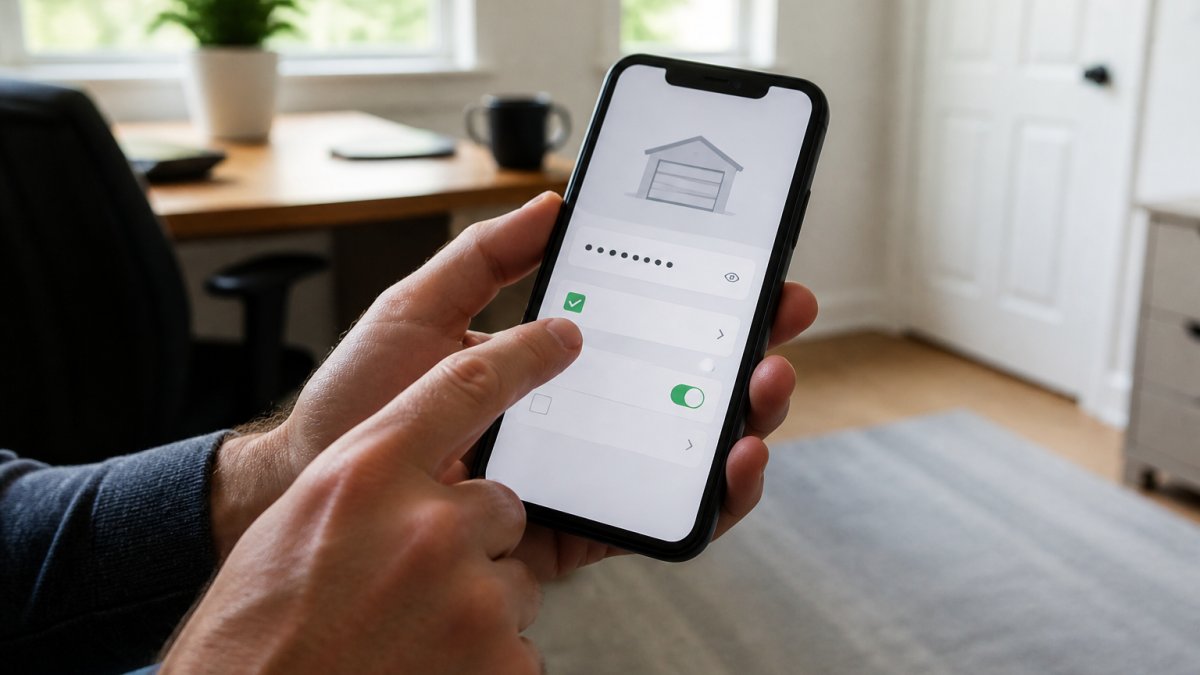
Starting with a strong password
Create a password at least 12 characters long, mixing uppercase, lowercase, numbers, and symbols. Avoid your name, address, or birthday, and don't reuse passwords, something like "GarageDoor#2026!Secure" works well. Change it every six months, or immediately if you suspect unauthorized access.
Reviewing app permissions and device access
Your garage door app requests permissions at install, location, contacts, camera. Turn off anything you don't use; most apps don't need your contacts. Then check "connected devices" or "authorized devices" and delete anything you don't recognize, including old phones.
Setting Up Garage Door App Two-Factor Authentication
Two-factor authentication adds a second layer: even with your password, no one can access your account without a second code sent to your phone. Enable it under "two-factor authentication," "2FA," or "two-step verification." Choose text-message codes (simpler) or an authenticator app (more secure, since it doesn't rely on your carrier).
Managing Smart Garage Door Access Sharing Safely
Most garage door app breaches come from a shared login, not a hacker in a basement. Hand a neighbor your username and password to feed the cat and you've given them permanent, untraceable access. Use the app's guest and permission tools instead.
Why shared logins are the wrong tool
A shared login breaks every safety feature: 2FA codes go to your phone, access logs show your account rather than theirs, and ending it means changing your password and re-enrolling every device.
A common pattern in unauthorized garage entries: one account shared across a household, a contractor, and a pet sitter, password unchanged for years, so everyone who ever had it still does.
Granting temporary vs. permanent access
Permanent access suits people who need it constantly, a spouse, an adult child at home, a long-term caregiver.
Temporary access is for everyone else: dog walkers, housecleaners, handymen, delivery drivers, house sitters. Set an expiration date and time, grant access Monday for a Wednesday appointment, expiring Wednesday at 6 p.m.
Safe access-sharing procedures
Follow this sequence every time:
- Create a named user, not a shared login. Use "add user" or "invite," enter their name and contact info, and let them set their own password and 2FA.
- Assign the minimum permission level. Tiers typically include view only, open/close only, and full admin. A dog walker needs open/close; a neighbor checking the house needs view only plus alerts. Almost no one outside your household needs admin.
- Set an expiration. Even for trusted long-term users, set a 30-, 60-, or 90-day review date so you're prompted to confirm or revoke.
- Restrict by time window if possible. Limiting access to, say, 8 a.m.-6 p.m. weekdays keeps a dog walker's credential from opening your garage at 2 a.m.
- Log the grant. Note who, what permission, and what expiration, so you'll know why each name is on the list six months from now.
Monitoring who has access and revoking permissions
Open your app's access list, "people with access," "shared access," or "users", monthly. If you can't remember why someone is there, revoke them and re-grant if needed.
Revocation should be immediate and complete.
If you share access outside your household, review the access history or event log weekly. Opens at unusual hours, repeated failed attempts, or activity under an unknown name mean revoke first, investigate second.
What to do when a phone is lost or an account is compromised
If a household member loses their phone, treat it as a credential leak. In order:
- Revoke that user's access from another admin device, don't wait for the phone to turn up.
- Change the password on that account and any account sharing it.
- Remove the lost device from the "connected devices" or "authorized devices" list.
- Review the access log between loss and revocation for opens you can't account for.
- If anything looks wrong, change your Wi-Fi password and re-pair the opener, since the phone may have had your network credentials saved.
If your own admin account may be compromised, unfamiliar devices, logins from strange places, unrequested password resets, change the password, revoke every device except the one in your hand, then re-enable 2FA with an authenticator app rather than SMS, since text codes can be intercepted via carrier account takeover.
Reviewing access after a life change
Access lists rot quietly: a move, a divorce, a new job, a contractor who finished six months ago, each leaves a name that shouldn't be there. Set a recurring 90-day reminder to read the access list top to bottom. It takes two minutes and closes the biggest gap in smartphone garage door security.
Enabling Garage Door Open and Close Alerts
Alerts notify you every time someone opens or closes your garage door, flagging suspicious activity, if your door opens at 3 AM while you're asleep, you'll know something's wrong.
Enable alerts in your app's notification settings and choose which actions trigger them; most people want both opening and closing. You can limit alerts to certain hours: all alerts when you're away, night-only when you're home.
What to Do When Connectivity Fails or Power Goes Out
A smartphone garage door app is the most fragile way to open your door: it depends on your phone, home Wi-Fi, internet connection, and the app maker's servers all working at once. If any fails, the app fails, but your door doesn't have to. Know which layer broke and which backup takes over.
The four failure modes, and what still works in each
1. Wi-Fi is down, power is on. The wall control and remotes work normally; the app can't reach the opener without a local network path.
2. Power is out, Wi-Fi is out. Without a battery backup, nothing electronic works and the manual release is your only option.
**3.
4. Your phone is dead, lost, or has no signal. The app is irrelevant; wall controls, remotes, and any keypad still work.
Manual override and mechanical backup options
Every opener made for the U.S. market since 1993 has an emergency release, usually a red cord or handle on the trolley inside the garage.
Two things to know before you need it:
- Test it now. Pull the release, open and close the door by hand, then re-engage the trolley by running the opener. If the door is too heavy to lift, the springs are out of balance and need service.
- Know the re-engage step. After a manual open, the trolley must reconnect before the opener works again, usually by pulling the cord back or running the opener until it catches. Skip this and the opener runs but the door won't move.
If your door has a mechanical backup key, common on older and some side-mount openers, keep a copy with a trusted neighbor or in a lockbox, not inside the garage, where it's useless in an outage.
Battery backup systems and their reliability
A battery backup keeps the opener running when utility power drops, but it does not keep your Wi-Fi router running unless the router is also on a battery. With backup on the opener only, the wall control still works but the app still won't.
What to expect from a typical opener battery backup:
- It powers a limited number of cycles, commonly 20 to 40, depending on model and door weight.
- It holds a charge for a day or two of standby, then needs utility power to recharge.
- It doesn't power the safety sensors on every model. Check your manual, if the sensors are unpowered, the door won't close under motor power even with the battery engaged.
Maintenance that matters:
- Test quarterly. Run the test button or self-test cycle and confirm the door moves.
- Replace the battery on schedule. Follow the manufacturer's interval, commonly every few years, even if it seems fine; backup batteries fail silently.
- Keep the terminals clean. Corrosion is the most common cause of a backup that tests fine but dies in a real outage.
If someone is trapped in the garage
A power outage with a person inside turns a convenience feature into a safety issue. The manual release is the exit, so everyone in the household, including kids old enough to be home alone, should know where the red cord is and how to pull it. Practice yearly. If the door is too heavy for the person most likely to be trapped, that's a spring or balance problem needing a service call.
A simple outage drill
Once a year, run this drill so you're not learning your backup plan in the dark:
- Unplug the opener (simulating a power outage).
- Confirm the manual release works and the door lifts by hand.
- Plug it back in and confirm the trolley re-engages.
- Turn off your Wi-Fi router (simulating an internet outage) and confirm the wall control and a remote still work.
- Turn the router back on and confirm the app reconnects on its own.
Fix any failed step before the next storm season. A garage door you can't open when you need to is a bigger problem than one that opens when you don't want it to.
Installation, Compatibility, and Initial Setup Safety
Before installing a smartphone garage door opener app, confirm your system is compatible, not all openers work with all apps.
Checking compatibility with older garage doors
Openers more than 15 years old may not support smartphone control, since they lack Wi-Fi or Bluetooth.
Find your opener's model number on the label inside the garage and search it online with "smartphone app" or "Wi-Fi compatibility" to see if it's listed.
If it isn't compatible, upgrade to a new opener with built-in smartphone control or add an aftermarket smart controller to your existing opener.
Professional installation and testing best practices
Installation matters. A poorly installed system creates security gaps and reliability problems. Hire a professional: they'll secure all connections, test the system thoroughly, and confirm your Wi-Fi signal is strong enough in the garage.
After installation, test everything before relying on it: open and close via the app, verify alerts, check access controls, and confirm the manual release still works.
Privacy, Encryption, and Protecting Your Data
Your smartphone garage door app collects data: when you open and close your door, possibly your location, contacts, or calendar.
Check that your app uses encryption, look for "HTTPS" in its settings or privacy policy, which means the connection between your phone and the app's servers is encrypted.
Consider Wi-Fi security too: your opener connects to your home network, so a weak Wi-Fi password could let an attacker reach your network and potentially your opener.
Smartphone garage door app safety starts with strong passwords and two-factor authentication, then continues with careful access sharing, monitoring alerts, and knowing your manual backup options. Garage Door Connection helps Colorado homeowners install and secure smart garage door systems that work reliably through our challenging winters and temperature swings. Get a Free Quote to discuss your current setup and security needs with our team.
Frequently Asked Questions
Can I use my smartphone to open and close my garage door remotely?
Yes. A smartphone garage door app allows you to open and close your garage door from anywhere with an internet connection, provided your opener has Wi-Fi connectivity. This requires a compatible smart opener or retrofit module. Remote access works through the app, which communicates with your opener via encrypted connection. However, ensure your app is set up with strong security settings and two-factor authentication to protect against unauthorized access. If connectivity fails, most systems include manual override options.
How do I set up two-factor authentication on my garage door app?
Most garage door apps offer two-factor authentication in their security settings menu. Enable this feature through your account settings, then choose your verification method: SMS text, email, or an authenticator app. After login, you'll receive a code you must enter to access your account. This adds a critical security layer, ensuring that even if someone obtains your password, they cannot open your garage door without the second verification code. Check your app's help documentation for specific steps, as setup varies by provider.
Is it safe to share garage door app access with family members or guests?
Sharing access can be safe if done carefully. Most smart garage door apps allow you to grant temporary or permanent access to specific users. For family members, use permanent access with their own login credentials. For guests, create temporary access codes that expire after a set date or time. Always monitor your access history to see who has opened the door and when. Avoid sharing your primary account credentials; instead, use the app's built-in access-sharing feature, which provides better tracking and control over permissions.
What happens if my Wi-Fi goes down or the power fails?
If your Wi-Fi connection fails, you cannot use the smartphone app to open or close your garage door remotely. However, most smart openers include a manual release lever inside the garage that allows you to operate the door manually. Many modern systems also include battery backup units that provide temporary power to the opener during outages, allowing limited app functionality. Before installing a smart opener, confirm whether it includes battery backup and how long it operates during a power failure. Ask your installer about mechanical override options and keep manual operation methods accessible.